How to Use AnnounceFlow
Learn how to create, customize, and manage announcement bars for your Shopify store. This guide covers everything from getting started to advanced features.
Dashboard Overview
The dashboard is your command center for managing all your announcement bars. Here you can see all your bars at a glance, check their status, and quickly edit or delete them.
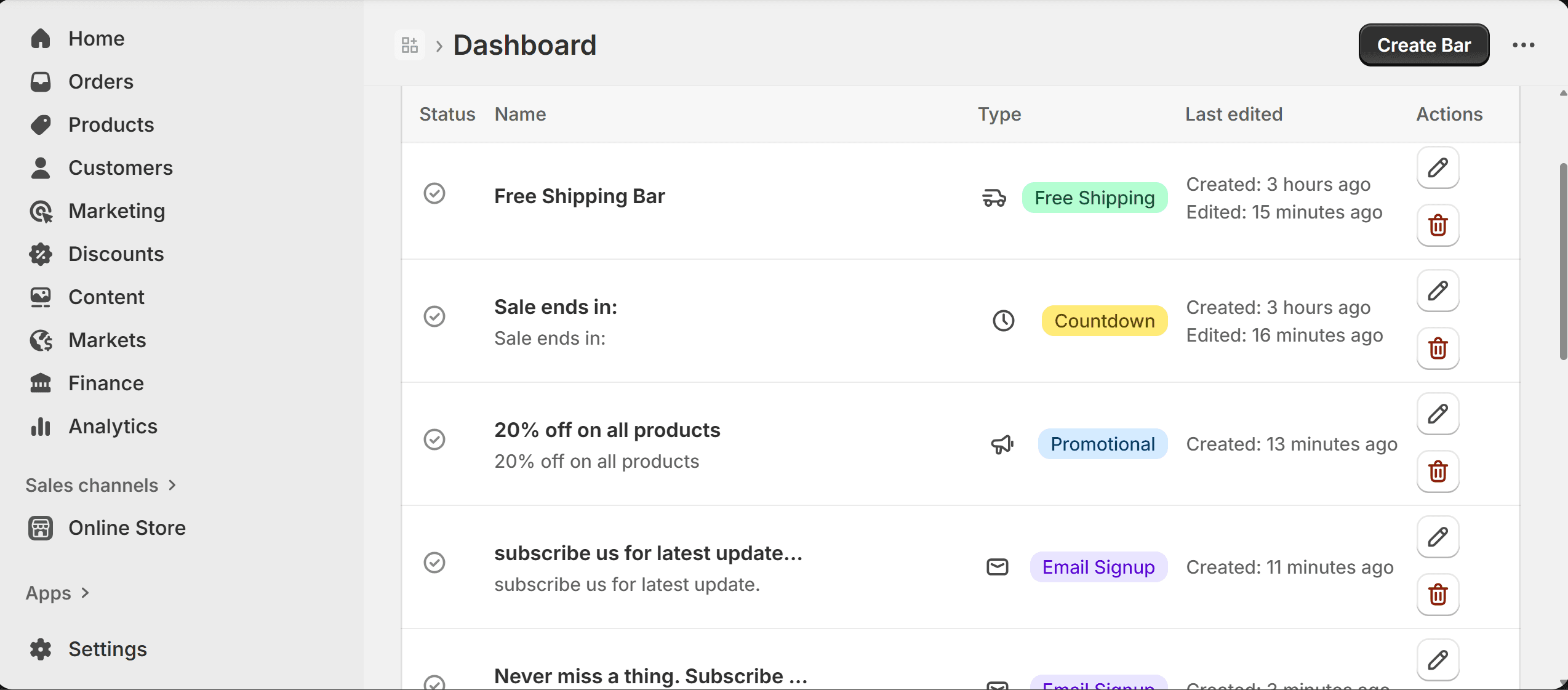
The main dashboard showing all your announcement bars with status, type, and quick actions
What you'll see:
- •Status: Shows if each bar is enabled or disabled
- •Name: The title you gave your announcement bar
- •Type: Color-coded badges showing bar type (Free Shipping, Countdown, etc.)
- •Last Edited: When the bar was created or last modified
Quick Actions:
- •Create Bar: Click the blue button to create a new announcement bar
- •Edit: Click the pencil icon to modify any existing bar
- •Delete: Click the trash icon to remove a bar permanently
- •Toggle Status: Click the status icon to enable/disable
Creating Announcement Bars
Creating a new announcement bar is simple. Click "Create Bar" from the dashboard and follow these steps to customize your bar.
Step 1: Choose Content
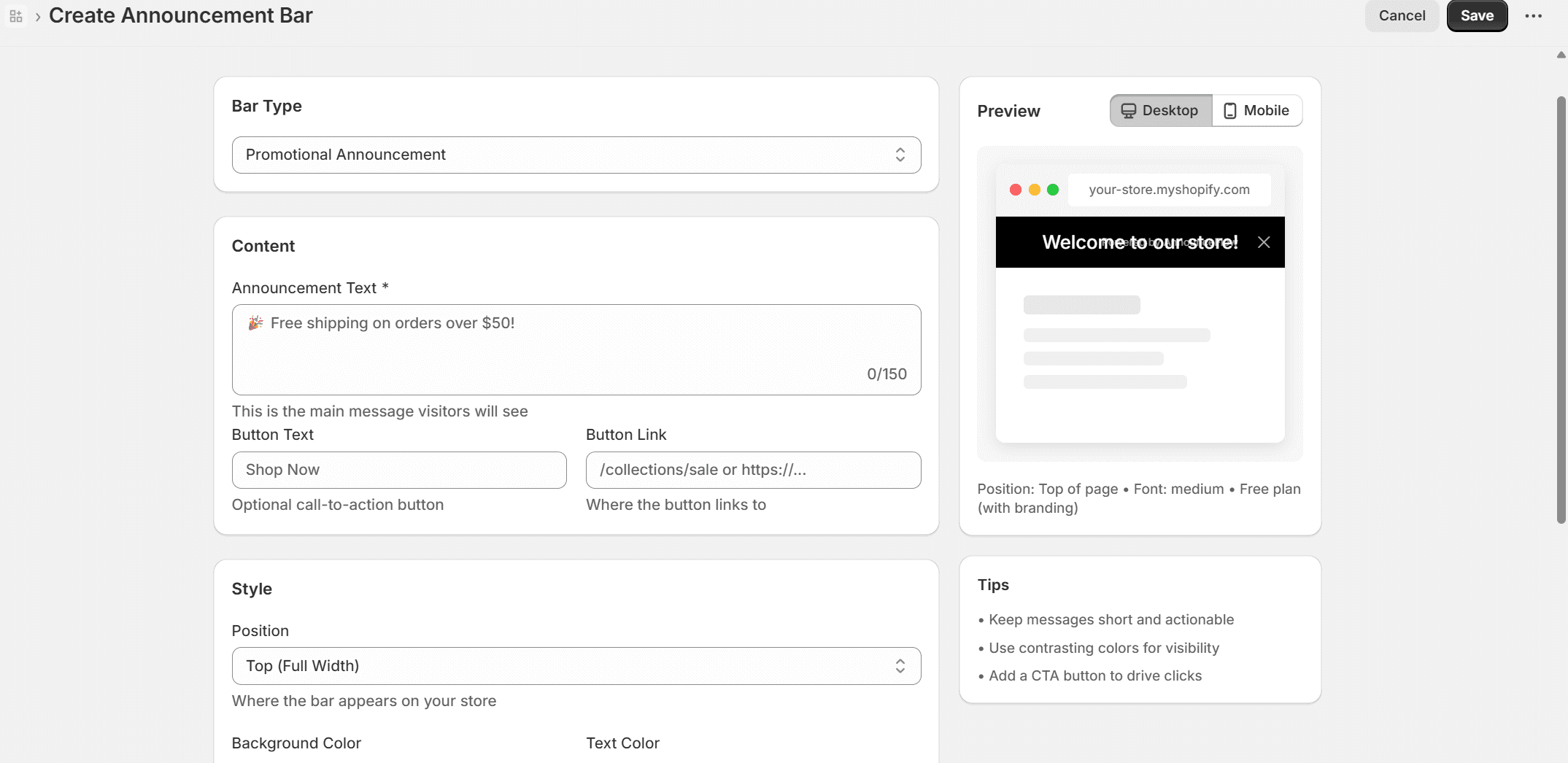
Configure your bar type, announcement text, and optional call-to-action button
- Bar Type:Select from Promotional, Countdown Timer, Free Shipping Progress, Email Capture, or Cookie Consent
- Text:Enter your announcement message (this is what visitors will see)
- Button:Optionally add a call-to-action button with custom text and link
- Preview:See a live preview on the right side, toggle between Desktop and Mobile views
Step 2: Customize Style
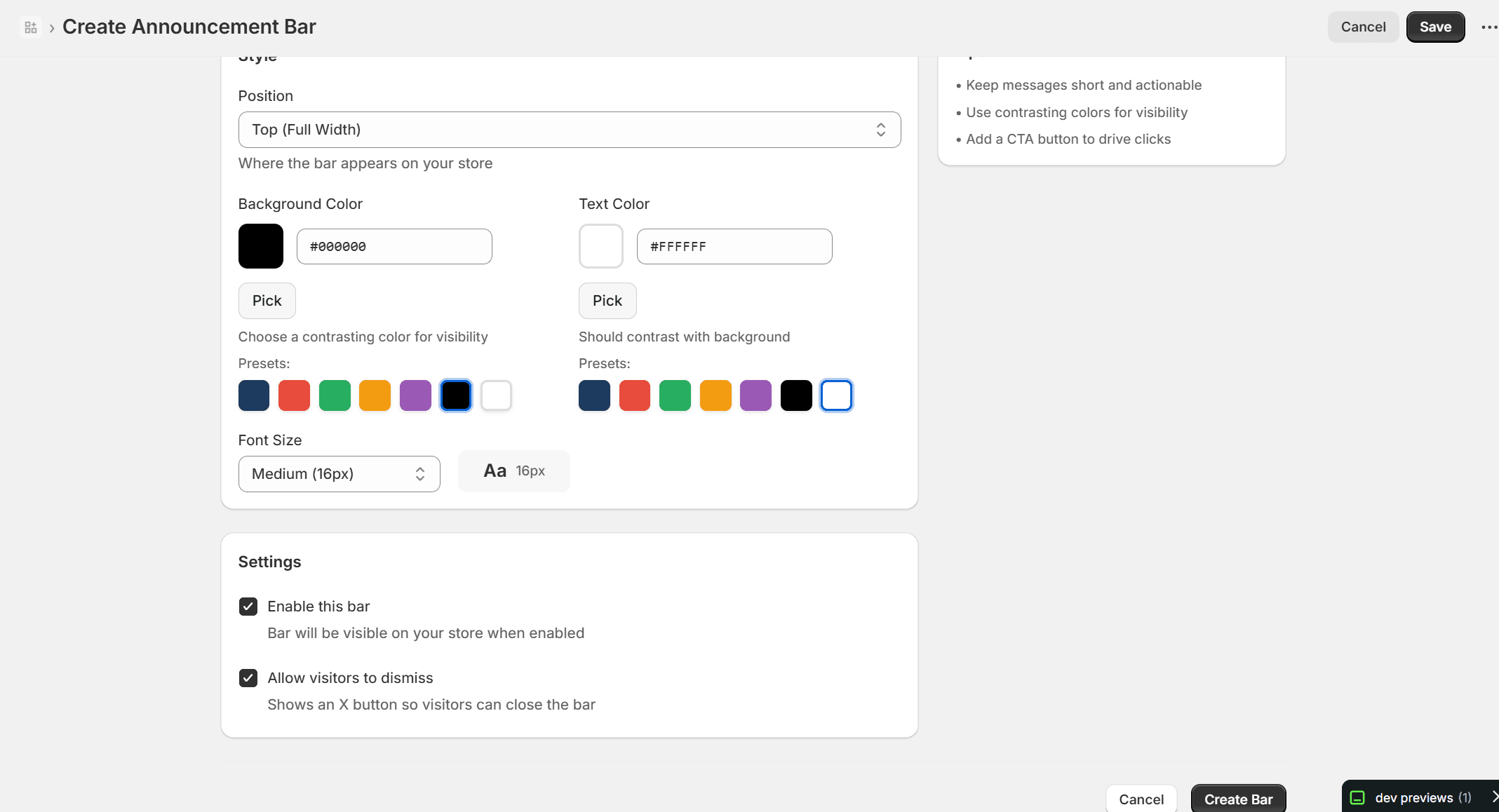
Customize position, colors, font size, and other settings
- Position:Choose where the bar appears (Top Full Width is most common)
- Background Color:Pick from presets or enter a custom hex color
- Text Color:Ensure good contrast with your background for readability
- Font Size:Small, Medium (default), or Large
- Settings:Enable/disable the bar and allow visitors to dismiss it
Pro Tip: Use contrasting colors for better visibility. Dark backgrounds with light text or vice versa work best. The Tips panel on the right side provides helpful suggestions as you design.
Bar Types
AnnounceFlow offers five different bar types, each designed for specific use cases. Choose the right type for your marketing goals.
Promotional Announcements
Create eye-catching promotional messages for sales, new arrivals, welcome messages, or any important updates you want to share with your visitors.
Key Features:
- •Custom announcement text up to 150 characters
- •Optional call-to-action button with custom link
- •Perfect for store-wide sales and promotions
- •Grab attention with contrasting colors
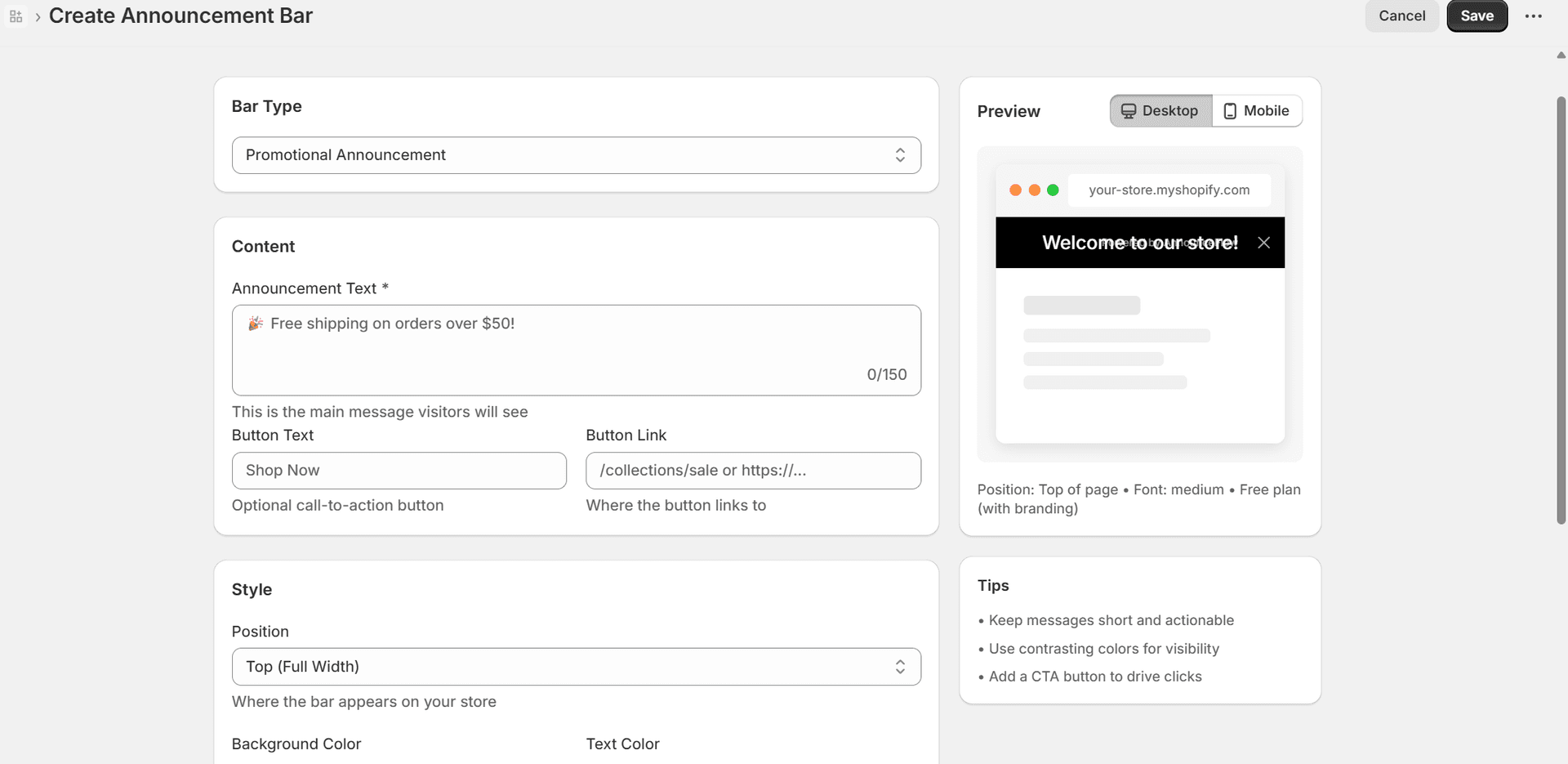
Configure your promotional announcements bar
Countdown Timers
Build urgency with countdown timers that show exactly how much time is left for flash sales, limited-time offers, or product launches.
Key Features:
- •Set specific end date and time
- •Live countdown display (days, hours, minutes, seconds)
- •Custom expired message when timer ends
- •Proven to increase conversion rates
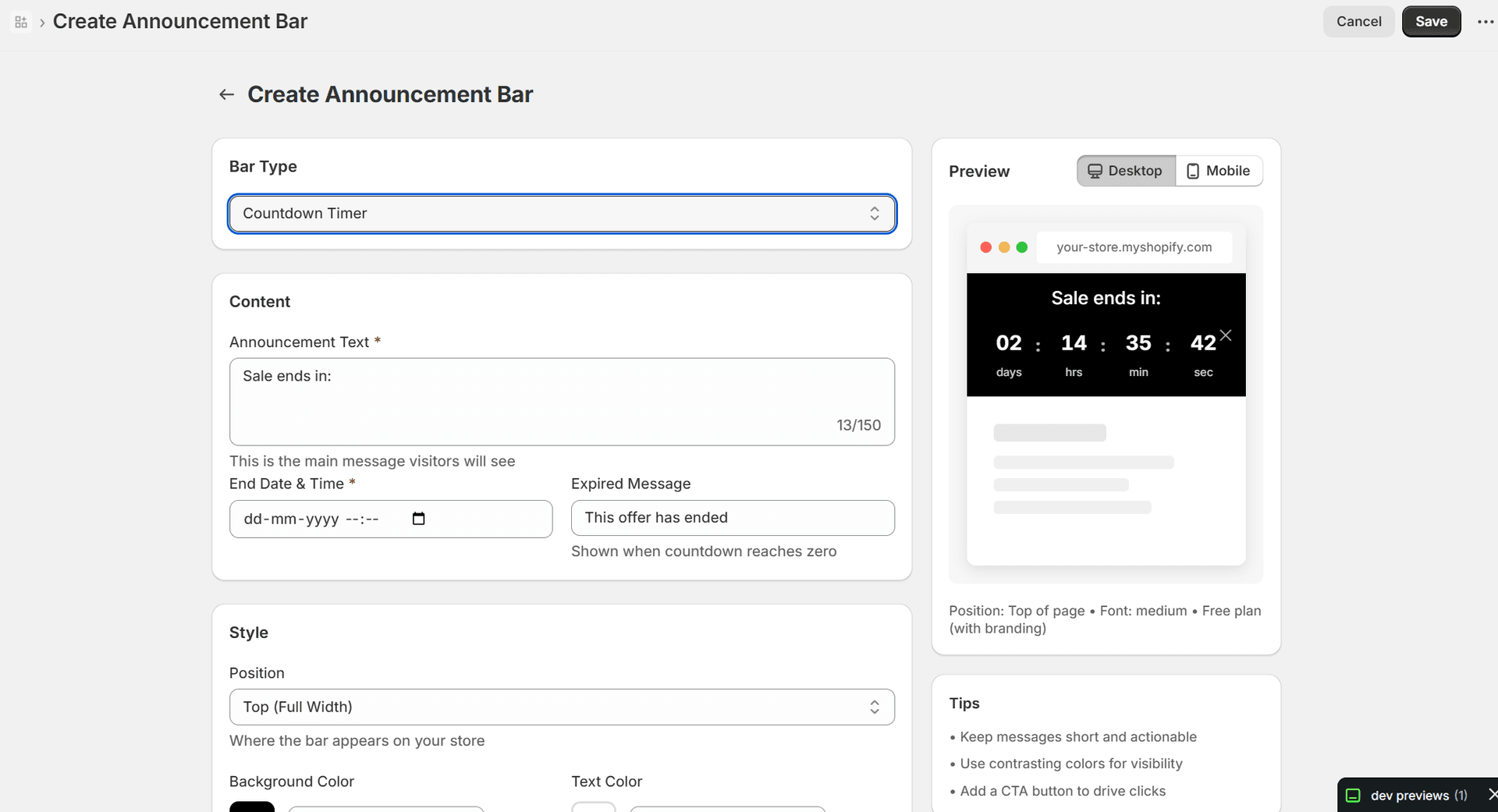
Configure your countdown timers bar
Free Shipping Progress
Show customers how close they are to free shipping with a dynamic progress bar. This feature is proven to increase average order value.
Key Features:
- •Set your free shipping threshold amount
- •Support for multiple currencies
- •Dynamic progress message with remaining amount
- •Custom success message when threshold is reached
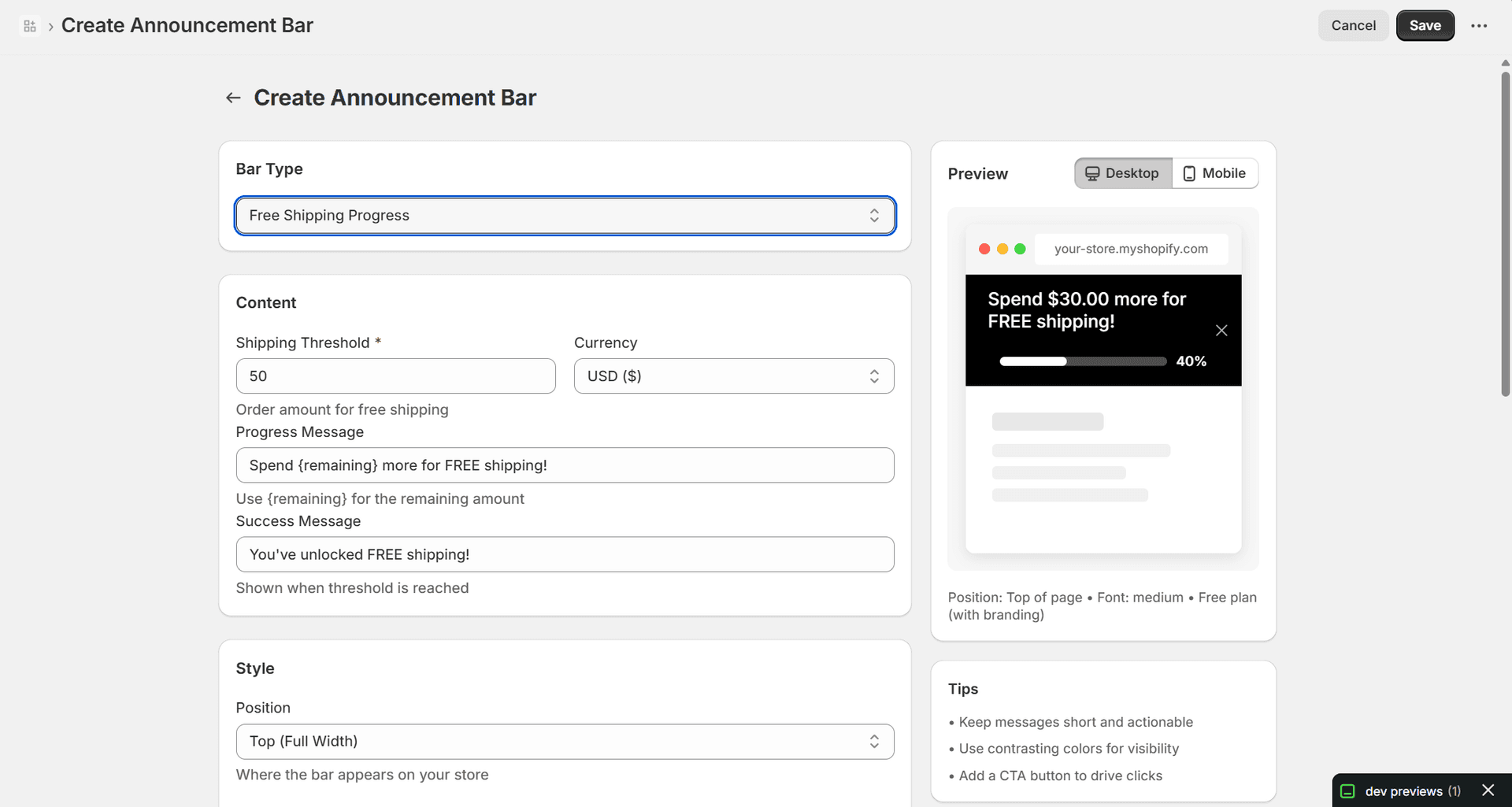
Configure your free shipping progress bar
Email Capture
PremiumGrow your email list with beautiful signup forms directly in your announcement bar. Capture leads and build lasting customer relationships.
Key Features:
- •Custom headline text to encourage signups
- •Customizable input placeholder and button text
- •Success and error message configuration
- •All collected emails available in dashboard
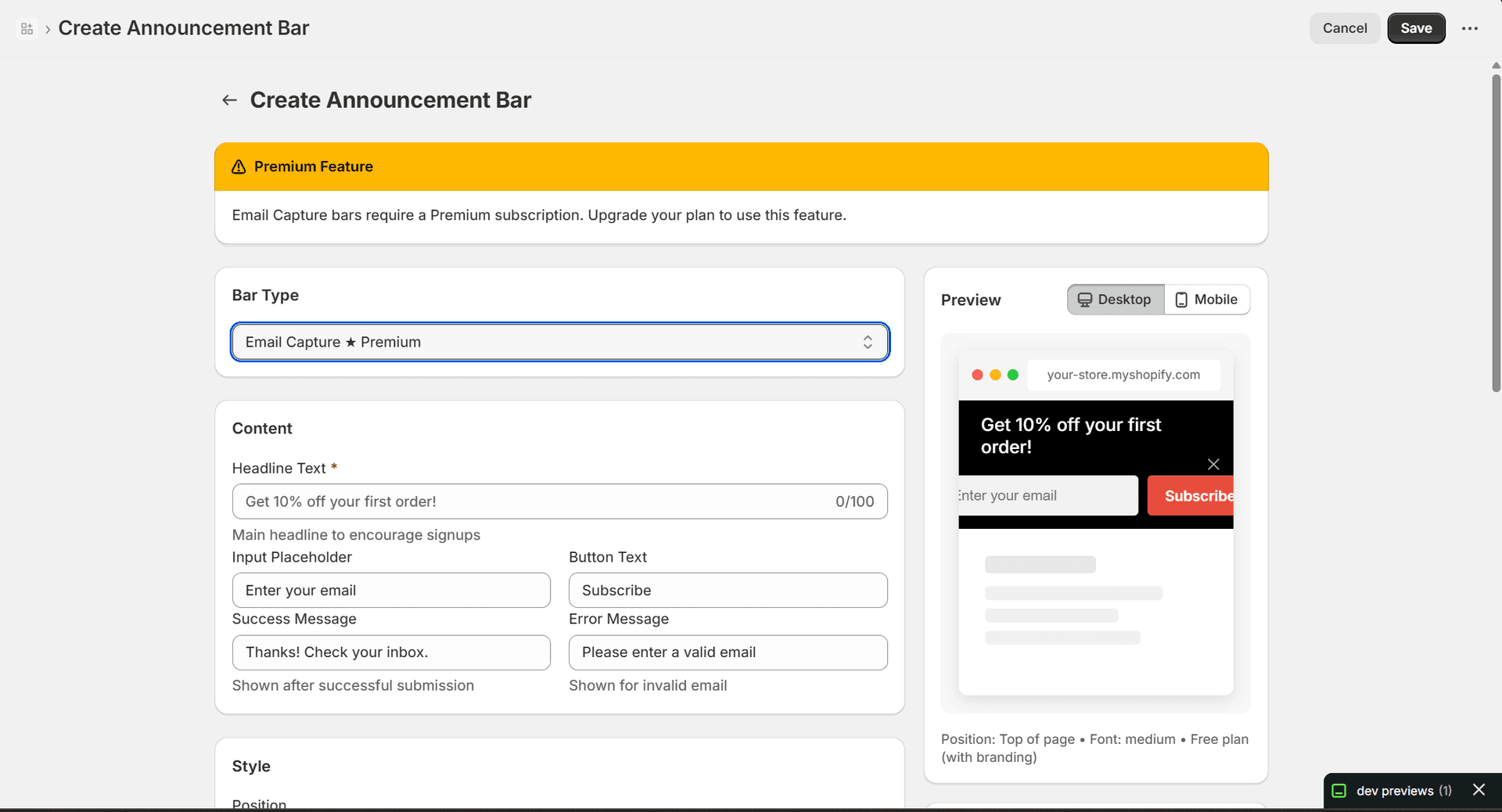
Configure your email capture bar
Cookie Consent
Stay GDPR compliant with customizable cookie consent notices. Professional and non-intrusive design that meets legal requirements.
Key Features:
- •Custom consent message up to 200 characters
- •Accept and Decline button text customization
- •Link to your privacy policy page
- •Recommended bottom position for best UX
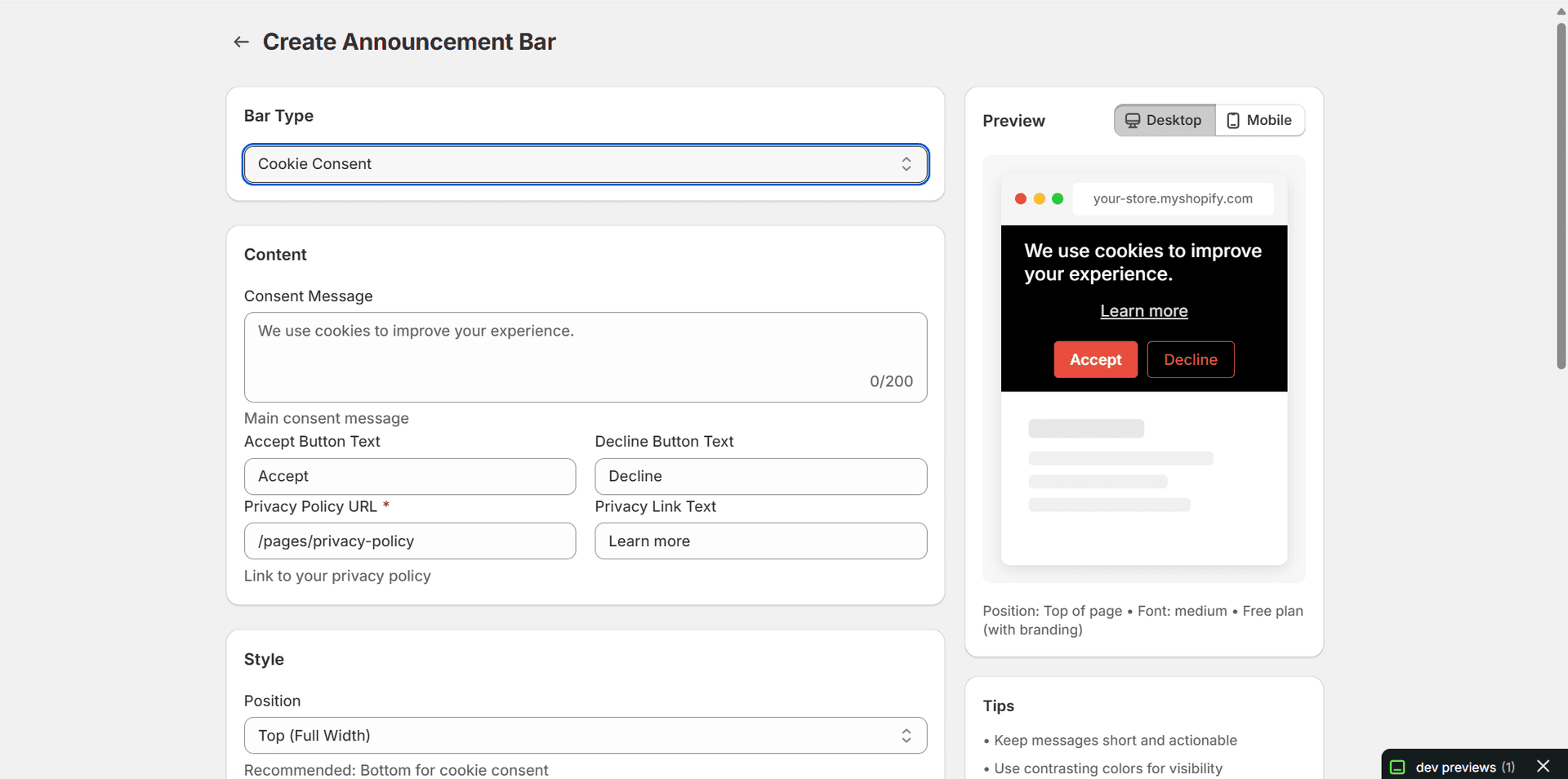
Configure your cookie consent bar
Managing Your Bars
Easily enable, disable, or delete your announcement bars from the dashboard. No coding required.
Enable/Disable Bars
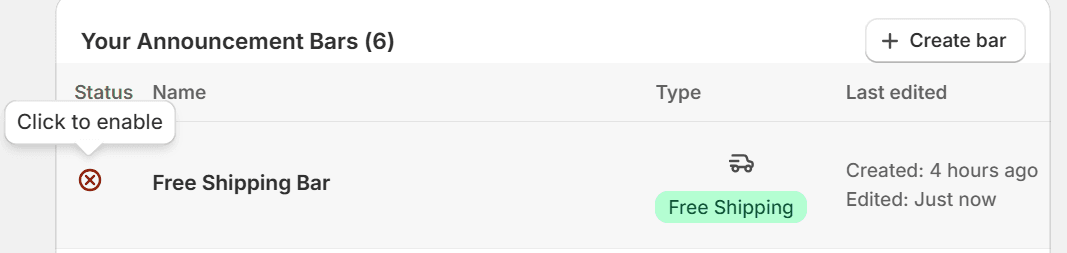
Click the status icon to enable or disable a bar
Toggle your bars on or off with a single click. Disabled bars won't appear on your store but their settings are preserved. Perfect for scheduling promotions or A/B testing different messages.
Delete Bars
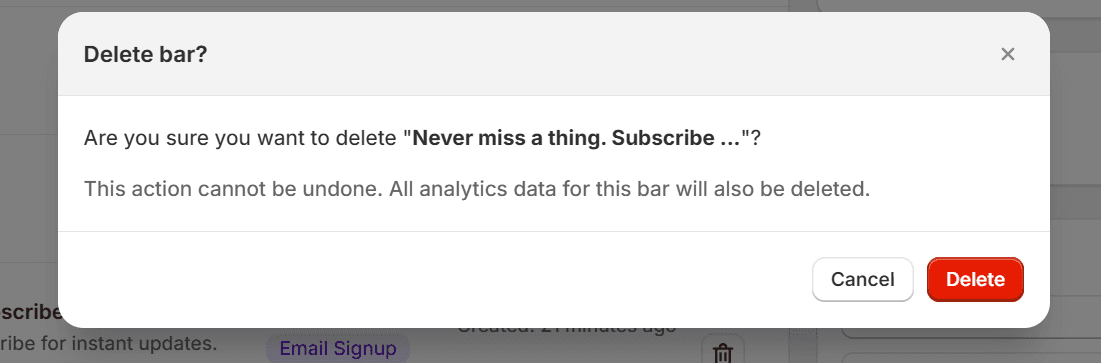
Confirm deletion to permanently remove a bar
When you no longer need a bar, click the trash icon to delete it. You'll see a confirmation dialog since this action cannot be undone. All analytics data associated with the bar will also be deleted.
Live Store Examples
See how your announcement bars look on an actual Shopify store. These examples show different bar types and configurations in action.
Free Shipping Progress Bar
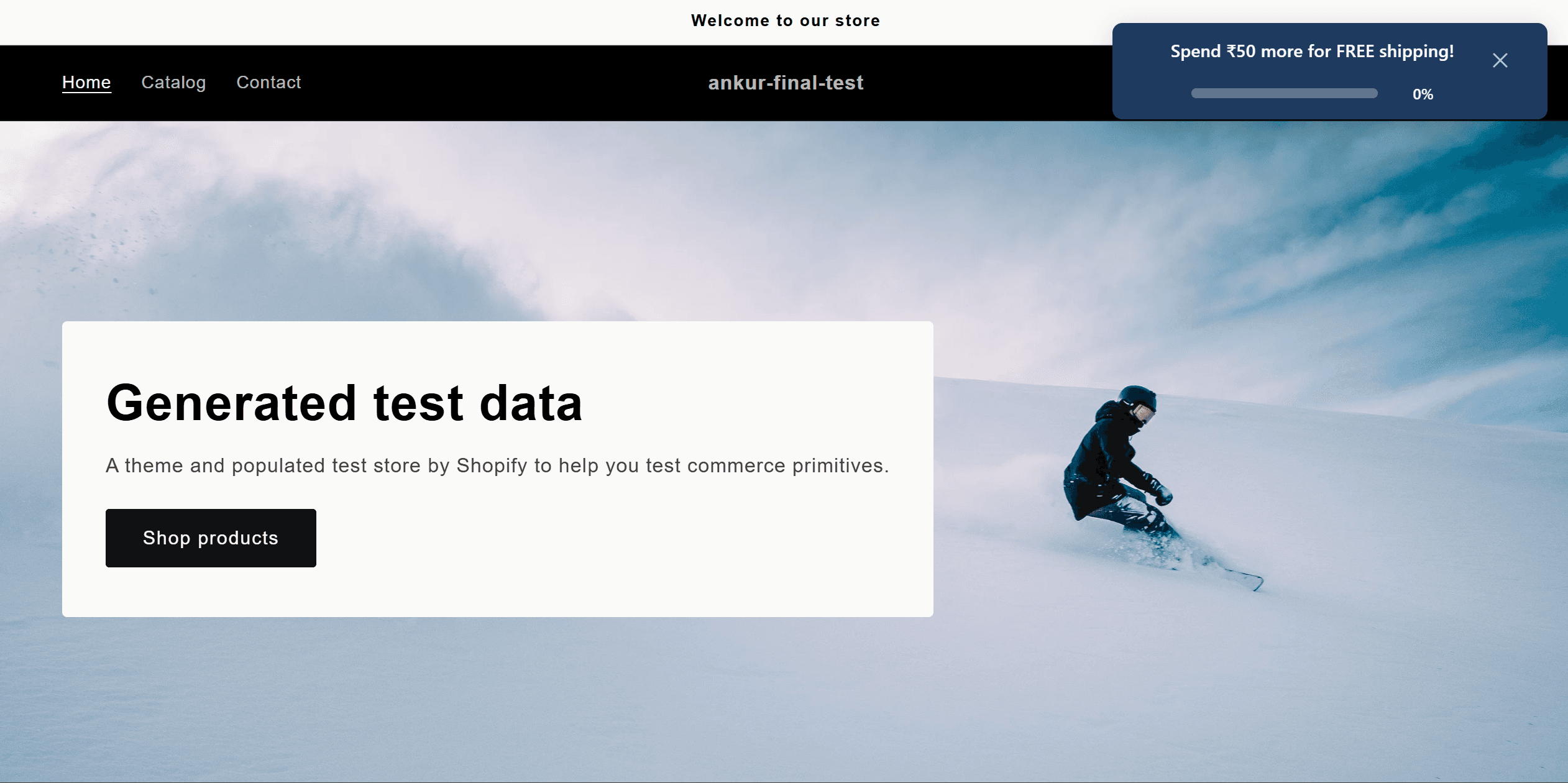
Free shipping progress bar showing remaining amount and progress indicator
The free shipping progress bar displays at the top right, showing customers exactly how much more they need to spend to qualify for free shipping. The progress bar fills up as items are added to cart.
Countdown Timer Bar
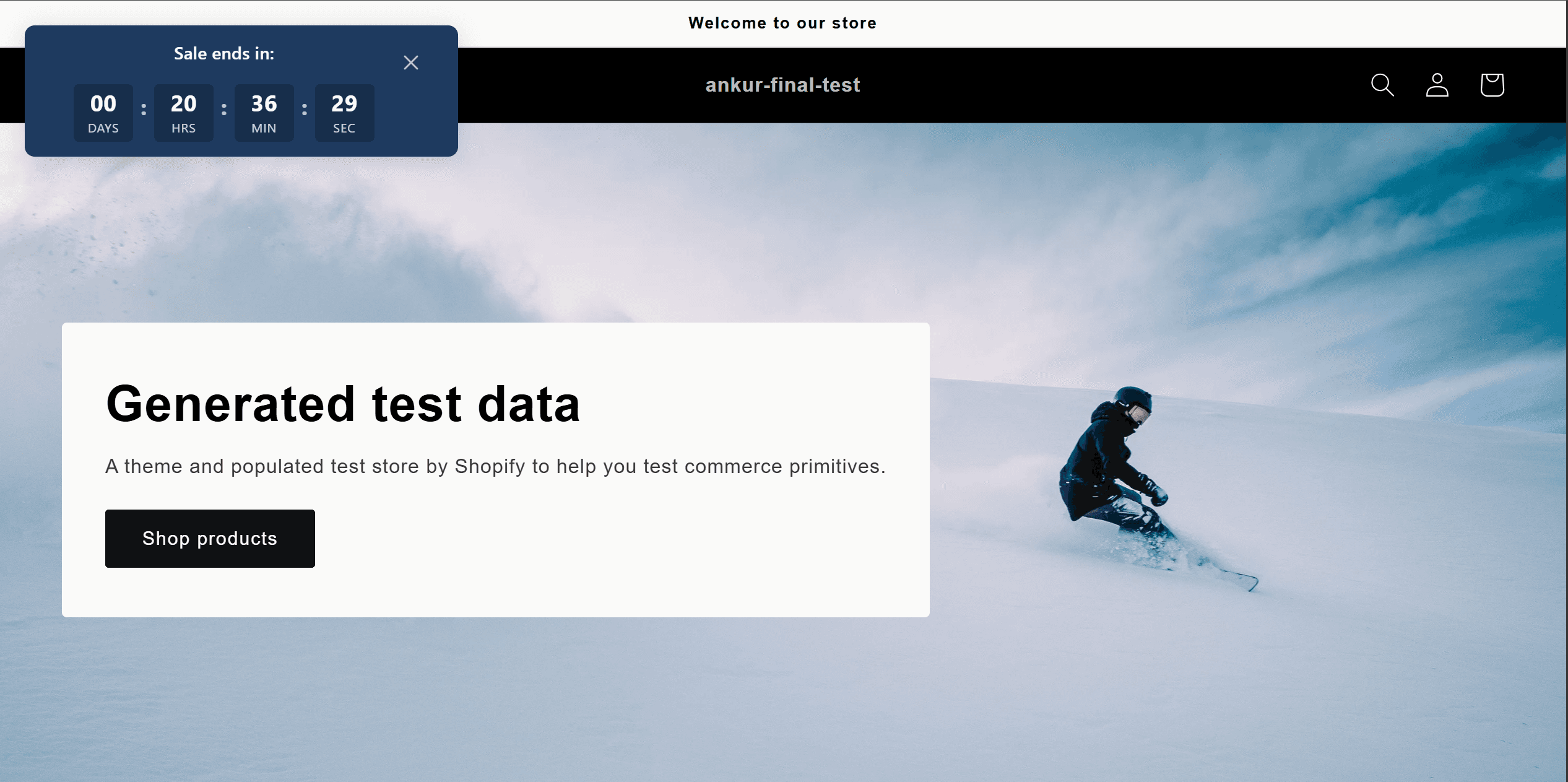
Countdown timer creating urgency with days, hours, minutes, and seconds
The countdown timer appears in the top left corner, showing a live countdown with days, hours, minutes, and seconds. This creates urgency and encourages customers to act fast.
Side Position Bar
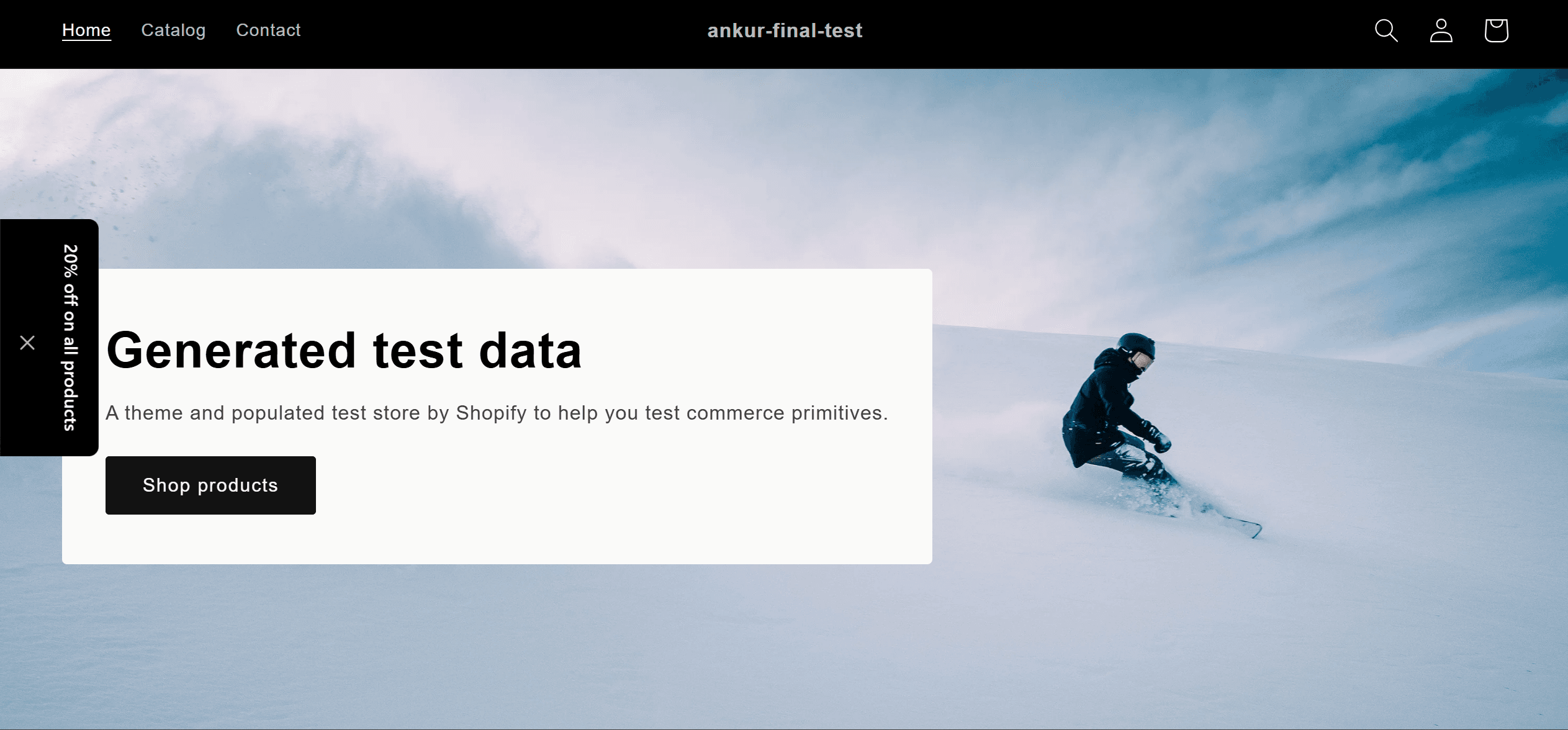
Promotional bar positioned on the left side of the page
Bars can also be positioned on the side of your store for a different look. This vertical positioning is less intrusive while still being visible to visitors.
Multiple Bars Active
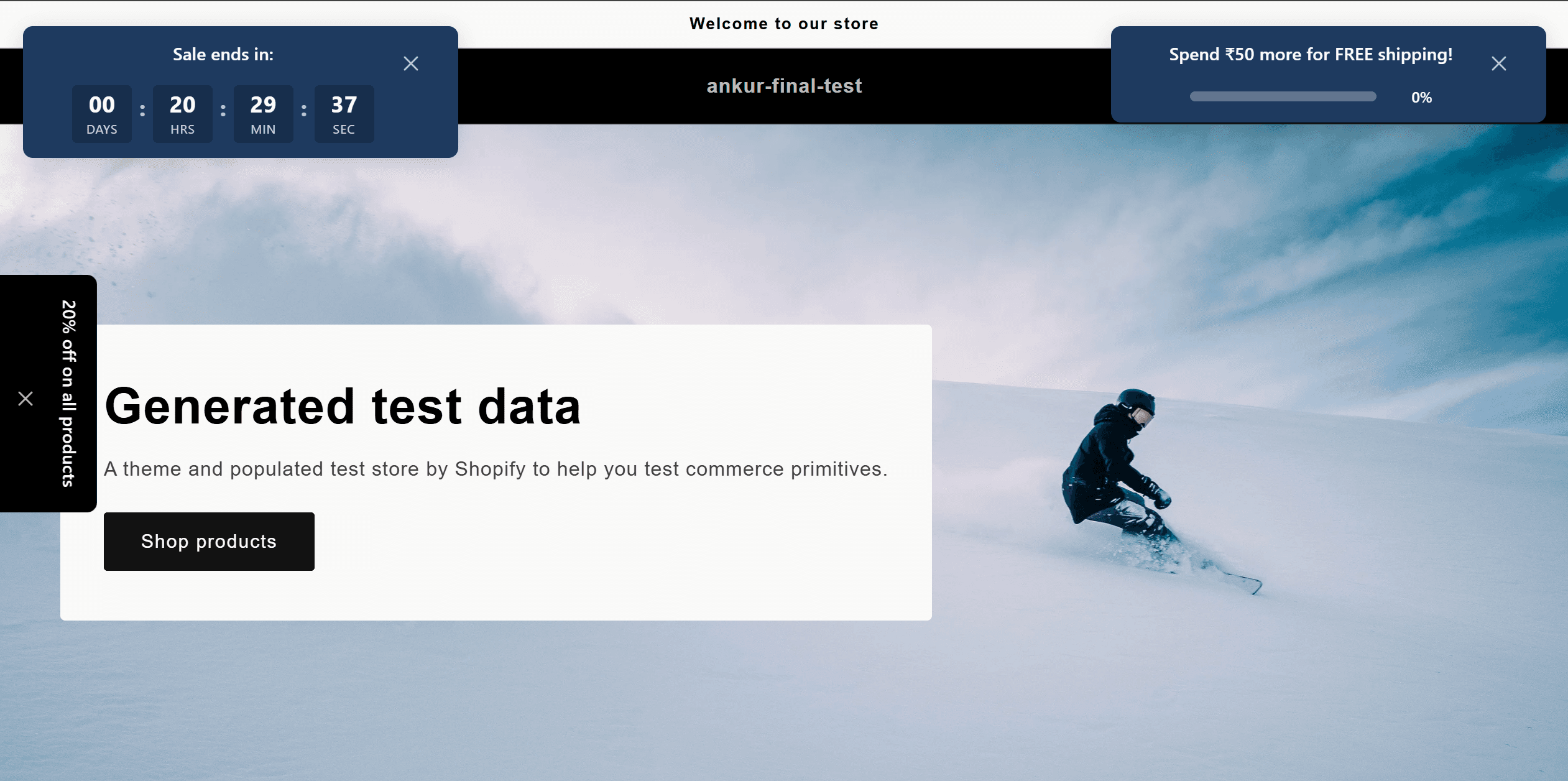
Running multiple bars simultaneously - Countdown Timer and Free Shipping
You can run multiple announcement bars at the same time. In this example, both a countdown timer and a free shipping progress bar are active, each in their own position without overlapping.
Email Subscribers
PremiumWhen using Email Capture bars, all collected email addresses are stored in your dashboard. View, search, and manage your growing subscriber list.
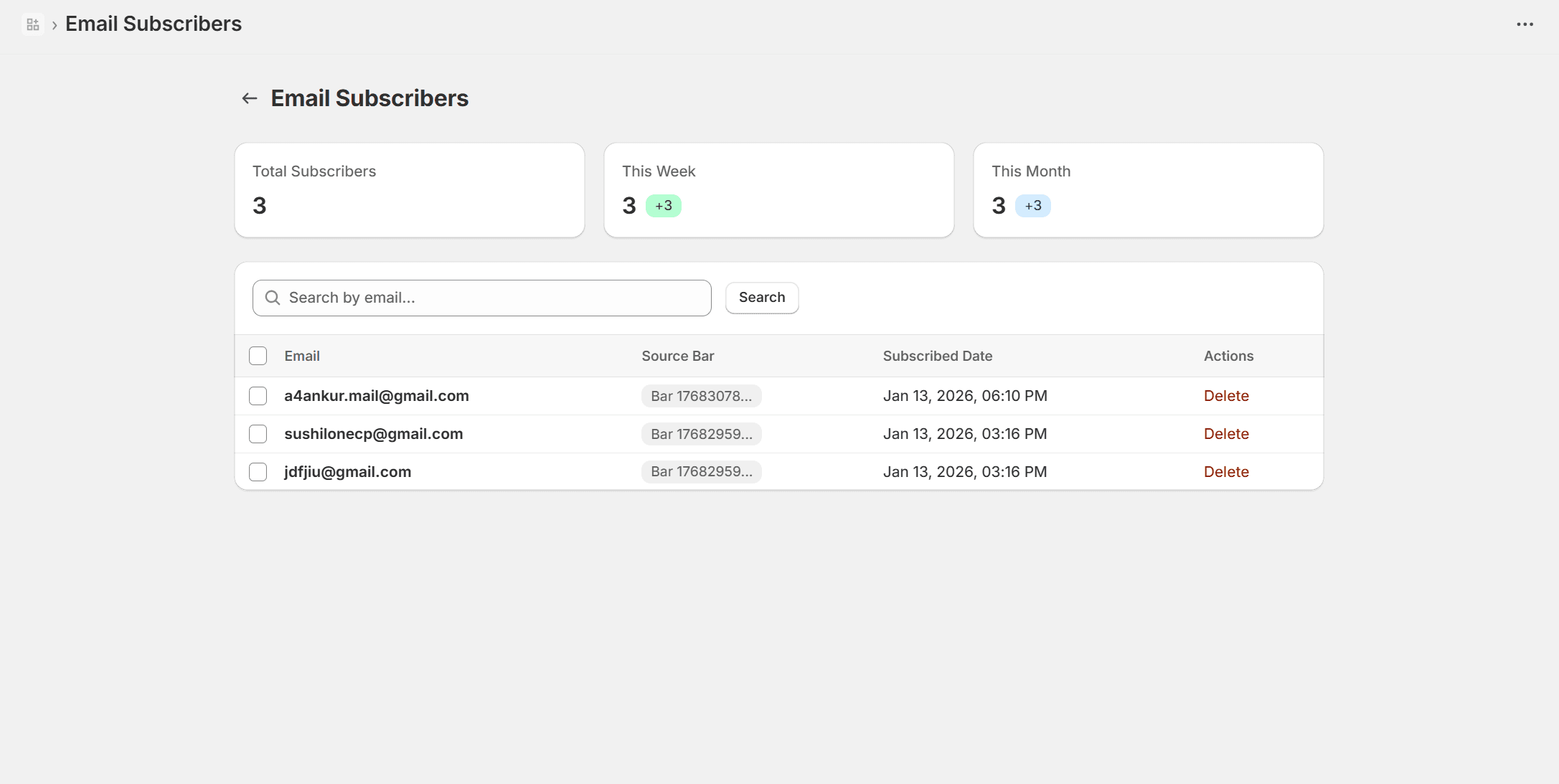
Email Subscribers dashboard showing total subscribers, recent signups, and detailed list
Subscriber Stats
See your total subscribers, this week's signups, and this month's growth at a glance with easy-to-read metrics.
Search & Filter
Quickly find specific subscribers by searching their email address. Filter by source bar to see which campaigns performed best.
Manage Subscribers
View subscription date, source bar, and remove subscribers if needed. Export your list to use with your email marketing platform.
Ready to boost your store's conversions?
Start creating announcement bars today. Install AnnounceFlow on your Shopify store and see the difference it makes.
Install on Shopify